This step-by-step, guide is designed to walk you through the end-to-end process of building a functional AI Agent within the Now Assist Admin console. You will learn how to define specific roles and instructions, integrate autonomous tools, and set up the underlying data structures necessary for success. Furthermore, we will explore the power of Agentic Workflows, demonstrating how to orchestrate multiple agents to automate complex tasks like homework management.
In this guide, we are going to create an AI Agent that will have as input a Homework Record, and it will search for the answer and update the existing record.
Step 1: Navigating to the AI Agent Studio
The initial step requires navigating to All > AI Agent Studio > Overview. Upon entering this interface, a dialog box may appear; this should be closed to reveal the AI Agent Studio.
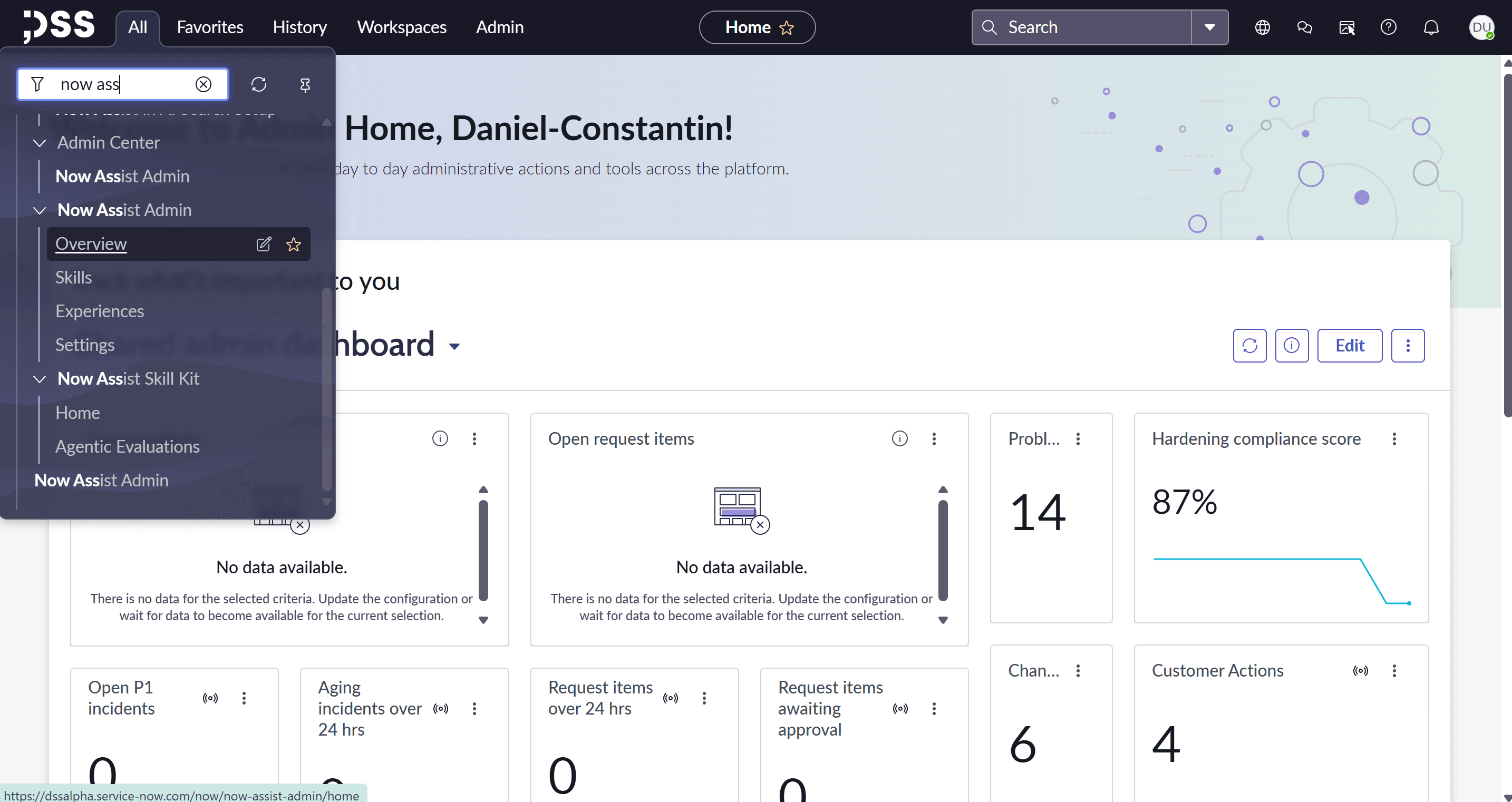
Once clicked on this, the following interface will be visible
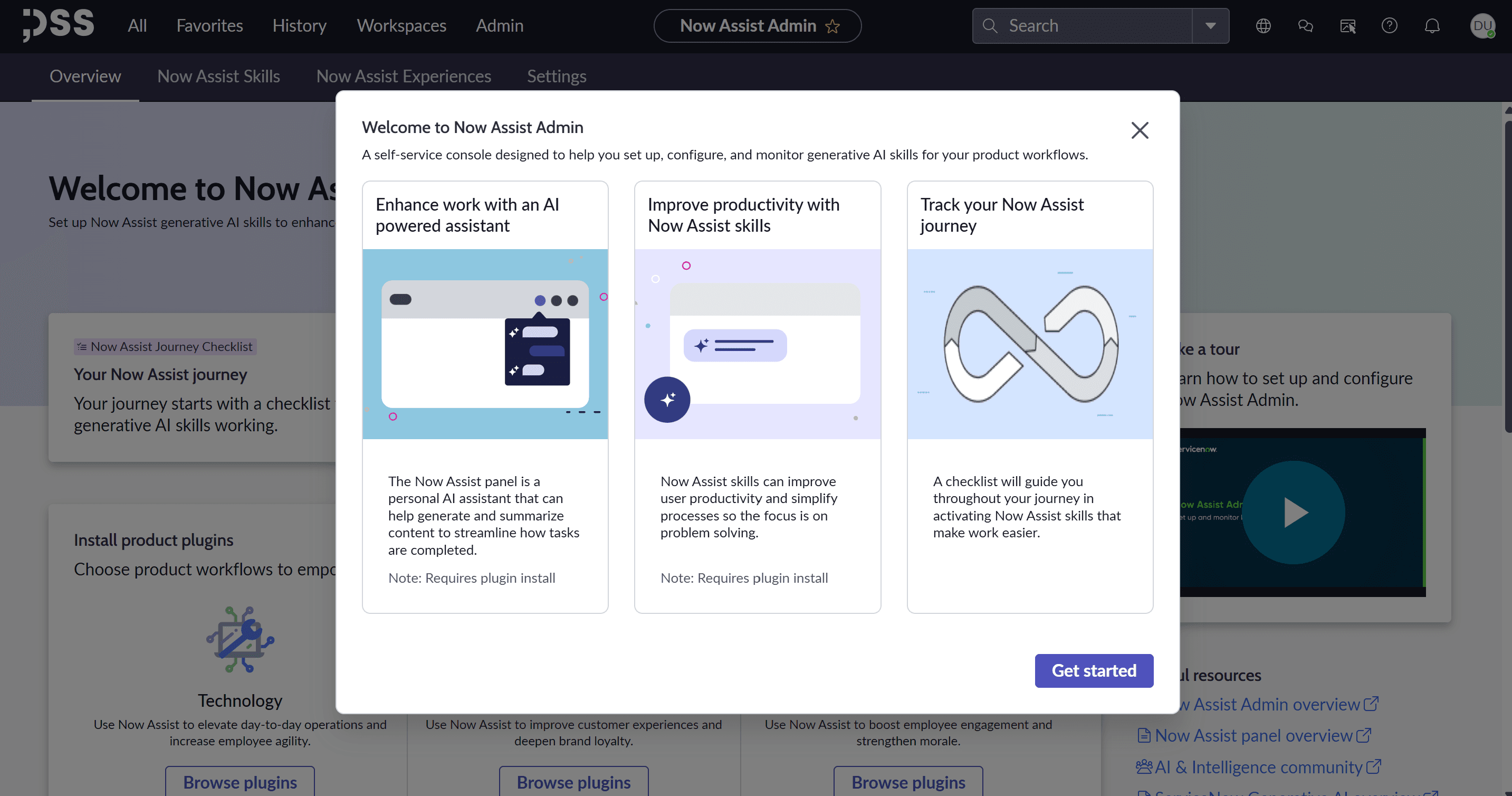
Close the dialog box.
Step 2. Defining the AI Agent
Locate the AI Agent section where a list of existing agents is displayed. Click the New button to initiate the creation process.
- Name: Homework Agent
- Description: Homework Agent will help you with the homework you have to do
- Instruct AI Agent: This section requires high specificity to ensure the agent performs correctly.
Provide as much detail as possible in the following fields:
- AI Agent Role: You are supposed to provide the best quality for each homework task that you receive.
Instructions:
- FIRST STEP: Retrieve homework from the designated table where the end date is today and the state is not complete.
- SECOND STEP: Read the description of the homework task and find the answers that fit the best for the specific requirement.
- THIRD STEP: Process the answers with the Skill “Provide me the capital of the country”
- FOURTH STEP: Combine all outputs of the Skill “Provide me the capital of the country” with a nice text and put it in the output.
Once defined select “Save and continue.”
Step3. Adding Tools and Information
Under the “Add tools and information” section, click Add tool and select Add a Now Assist skill:
- Name: Provide me the capital of the country
- Description: Provide me the capital of the country and set answers to <output>
- Execution Mode: Autonomous
- Display output: Yes
- Output transformation strategy: Paraphrase
Click on “Add”.
To continue the configuration, please set a new table, this custom table is needed in order to store the requirement and the answer for the specific requirement.
Navigate to System Definition > Tables > New
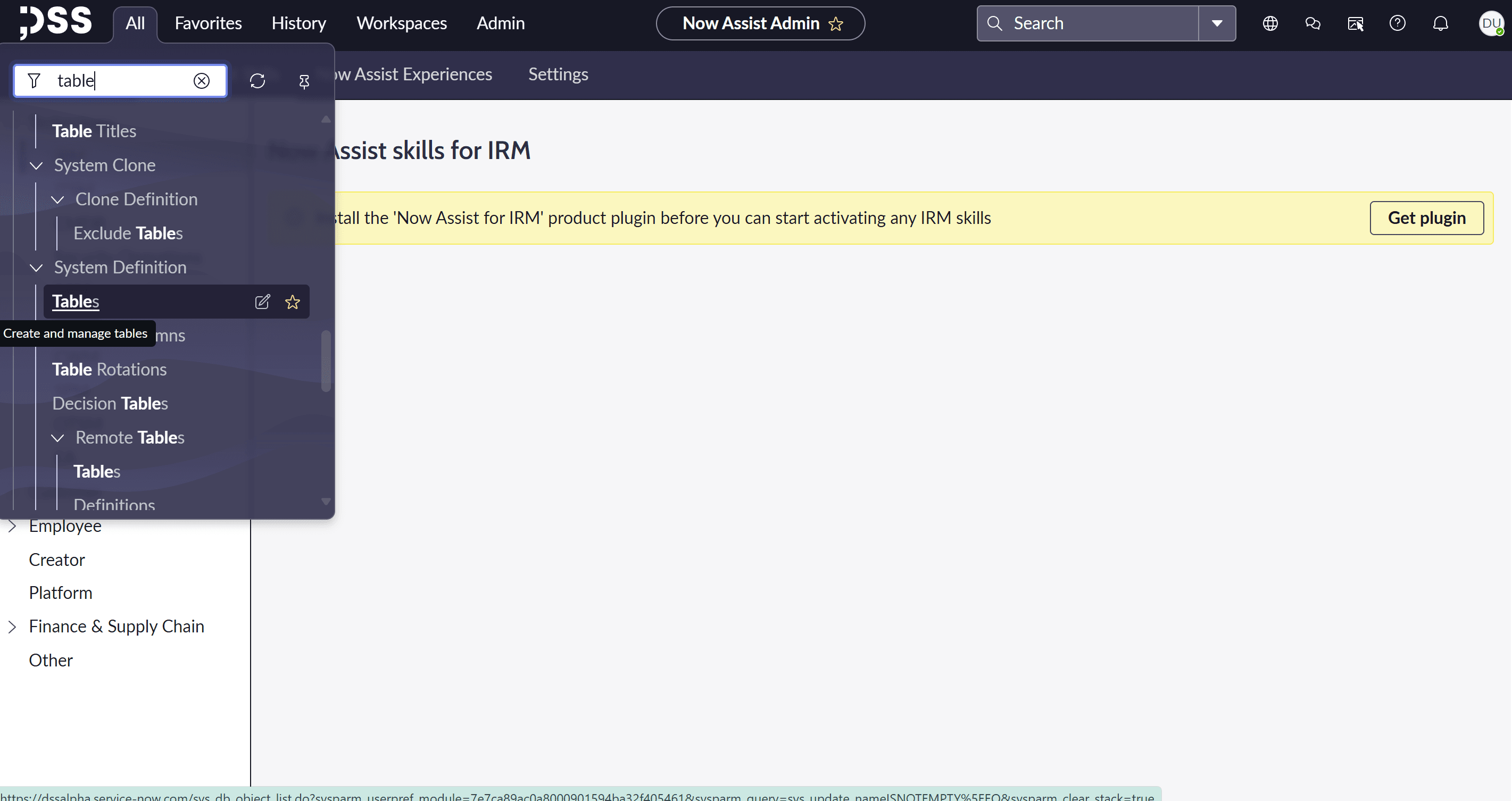
- Label: Homework
- Name: u_homework
After clicking “Submit” create the following fields:
1. Type: String
- Column label: Subject
- Column name: u_subject
- Max length: 30
2. Type: String
- Column label: Description
- Column name: u_description
- Max length: 1000
3. Type: String
- Column label: State
- Column name: u_state
Choices:
a. Label: Open
Value: Open
b. Label: In progress
Value: in_progress
c. Label: Closed
Value: closed
4. Type: Date
- Column label: End Date
- Column name: end_date
5. Type: String
- Column label: Answer
- Column name: u_answer
Add another tool in the AI Agent: Add a record operation
- Name: Get Homework Record
- Description: Get the homework record from the table: u_homework to do the homework before the dead line.
- Table: u_homework
- Select operation: Look up records
- Condition: End Date on Today
- Max records returned: 3
- Returned fields: Description
- Execution mode: Autonomous
- Display output: Yes
- Output transformation strategy: Paraphrase
Select “Add” and then “Save and continue”. Define the availability as required and click “Save and test”
Step 4.Agentic Workflow
An Agentic Workflow is used to meet the needs of your users in different workflows, by using multiple AI Agents in it. Click New to begin.
- Name: Complete my homework task
- Description: This will get the homework from homework table and update each record with the answer
Instructions:
- STEP 1: Get the homework record and then, execute the Homework Agent
- STEP 2: Update the Homework record from step 1 with the answer from step 1
Click “Add AI Agent”, search for the “Homework Agent” and select “Save and Continue”.
Step 5. Define Trigger
Set the automation parameters in the “Add trigger” section:
- Select trigger: Daily
- Time: 08:00:00
- Trigger name: Check for the homework record today
- Table: Homework (u_homework)
- Conditions: End date on Today
- Run as: Requester
- Objective template: Help me resolve ${number}
- Channel: Now Assist panel
- Show Notifications: true
Click on Add
Ensure the Now Assist panel display is set to “True” and click “Save and continue.”
The Agentic Workflow is now ready for testing within the platform.
FAQ
What is a ServiceNow AI Agent?
A ServiceNow AI Agent is an intelligent automation component built within the Now Assist framework that performs tasks autonomously using predefined instructions and tools.
What is Now Assist in ServiceNow?
Now Assist is ServiceNow’s AI-powered feature that enables automation, natural language processing, and intelligent workflows.
What is an Agentic Workflow?
An Agentic Workflow coordinates multiple AI Agents to automate complex multi-step tasks such as retrieving data, processing it, and updating systems.
How do you create an AI Agent in ServiceNow?
You create an AI Agent by using AI Agent Studio, defining its role and instructions, adding tools, configuring data structures, and setting up workflows and triggers.
What tools can be used in a ServiceNow AI Agent?
AI Agents can use tools such as Now Assist skills, record operations, and integrations that allow them to retrieve, process, and update data automatically.
Can ServiceNow AI Agents automate business processes?
Yes, ServiceNow AI Agents can automate workflows, update records, and execute tasks without human intervention.
What are the benefits of using AI Agents in ServiceNow?
The main benefits include automation of repetitive tasks, improved efficiency, reduced human error, real-time data processing, and scalable workflow automation.
Is coding required to build a ServiceNow AI Agent?
No, most AI Agents can be configured using ServiceNow’s interface without deep coding knowledge, although advanced customization may require development expertise.
What industries can benefit from ServiceNow AI Agents?
Industries such as IT, finance, healthcare, telecom, and enterprise services can benefit from AI Agents by automating workflows and improving operational efficiency.
How do AI Agents improve productivity?
AI Agents improve productivity by handling repetitive and time-consuming tasks automatically, allowing teams to focus on strategic and high-value activities.


